
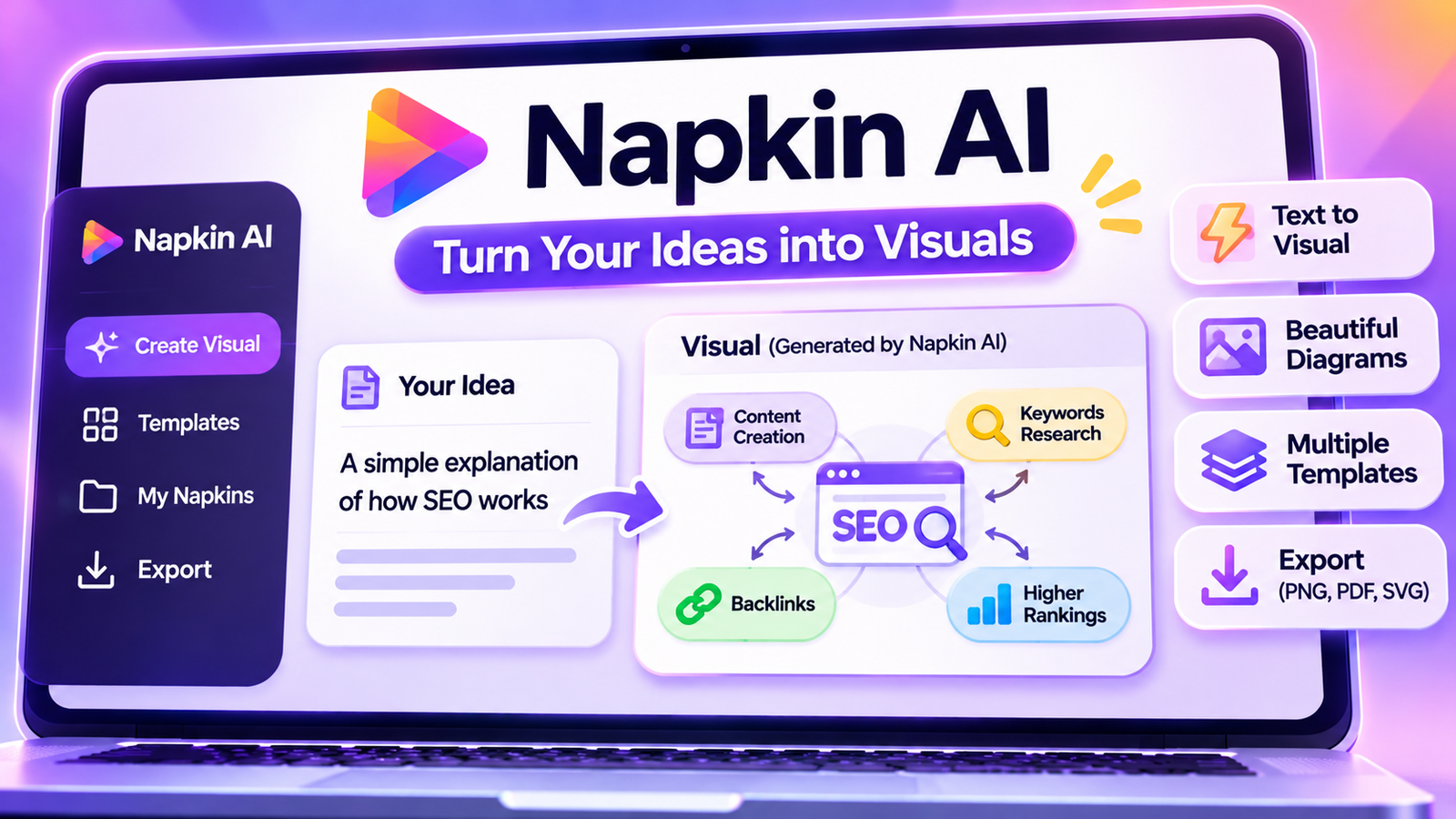
Napkin AI turns written text into visuals. You paste or type a paragraph, list or outline, and Napkin suggests diagrams to match it: flowcharts, process steps, comparisons, timelines, mind maps and infographic-style layouts. You pick one, adjust the colours, icons and wording, and export it as an image, a PDF or a PowerPoint-ready graphic. It doesn’t build full slide decks. It builds the individual visuals that make slides, reports and blog posts easier to understand.
It has grown fast. A June 2026 review by Fast.io reported around 5 million registered users by late 2025. This guide explains how Napkin works, how to write text that turns into good diagrams, what the free and paid plans include, and where it falls short.
Napkin AI at a glance
- What it does: converts structured text into editable diagrams and infographic components.
- Exports: PNG, SVG, PDF and PowerPoint (free plan: PNG and PDF).
- Free plan: a weekly allowance of AI credits, watermarked exports, collaboration and file import.
- Paid plans: remove the watermark, add more credits, SVG and PowerPoint export and brand styles.
- Best for: anyone who explains ideas: teachers, students, marketers, consultants, managers and bloggers.
Contents
- What Napkin AI is good at
- How to create your first visual
- Writing text that turns into great diagrams
- A worked example: from notes to diagram
- Which visual fits which idea
- Editing, styling and branding
- Exporting to slides, docs and the web
- Five rules for diagrams people understand
- Free vs paid plans
- Use cases by role
- Limitations to know about
- Napkin AI alternatives
- FAQ
What Napkin AI is good at
Most presentation pain isn’t writing the words. It’s turning “we have three options with different costs and risks” into a clear picture. Napkin fills that gap. It reads the structure in your text and offers several visual interpretations, so you don’t start from a blank canvas.
Where it shines:
- Processes: step-by-step workflows become flowcharts or numbered sequences.
- Comparisons: two or three options become side-by-side panels or tables.
- Hierarchies: a main idea with sub-points becomes a mind map or tree.
- Timelines: dated events become a horizontal or vertical timeline.
- Lists of features or benefits: these become icon-led infographic blocks.
Because the output is editable, you’re not stuck with the AI’s first idea. You can rename boxes, swap icons, change colours and switch to a different layout in seconds.
How to create your first visual
- Sign up at napkin.ai with an email or Google account.
- Create a new napkin (a document) and paste or type your text. You can also import content from PowerPoint, Word or PDF files.
- Select a section of text you want to visualise and click the generate option that appears beside it.
- Browse the suggestions. Napkin offers several layouts for the same text. Scroll through and pick the one that tells the story most clearly.
- Edit labels, icons, colours and connectors.
- Export the visual in the format you need, or copy it straight into your slides or document.
According to Fast.io, the whole cycle from text to finished graphic can take well under a minute once you’re used to it.
Writing text that turns into great diagrams
Napkin’s output is only as clear as your input. Dense paragraphs produce generic visuals. Structured text produces sharp ones. A few habits make a big difference:
- Use lists. Bullets and numbered steps give Napkin obvious building blocks.
- Keep one idea per point. “Plan, build, test, launch” converts better than one long sentence describing all four.
- Use parallel wording. Start each point the same way (“Reduce costs…”, “Improve speed…”, “Increase trust…”) so the visual feels balanced.
- Add a short heading above the list. It often becomes the title of the visual.
- Include concrete details. Numbers, names and examples produce more specific diagrams than abstract language.
- Visualise sections, not whole documents. One diagram per idea is clearer than one giant graphic.
Try this: before generating, rewrite your paragraph as three to six short bullets. If you can’t, the idea probably isn’t clear enough yet, and no diagram will fix that.
A worked example: from notes to diagram
Imagine a small online shop owner who jotted down these notes after a team meeting:
“Orders are slow because we check stock by hand, then email the warehouse, then wait for confirmation, then send tracking manually. Customers complain about late tracking emails. Ideas: connect the shop to inventory, auto-send tracking, weekly stock review.”
Pasted as it is, Napkin can only guess at the structure. Rewritten into a short outline, it has much more to work with:
- Current process: check stock by hand → email warehouse → wait for confirmation → send tracking manually.
- Problem: customers receive tracking emails late.
- Fixes: connect shop to inventory; send tracking automatically; review stock weekly.
From this version, Napkin can offer a four-step flowchart for the current process, a “problem and solutions” layout, or a before-and-after comparison. The owner might use the flowchart in a staff training document and the before-and-after graphic in a short update to investors. Same notes, two audiences, two visuals, a few minutes of work.
Which visual fits which idea
| If your text describes… | Choose a… | Example |
|---|---|---|
| Steps in order | Flowchart or process diagram | How a customer order is fulfilled |
| Options to choose between | Comparison layout | Three pricing plans side by side |
| Parts of a whole | Mind map or hub-and-spoke | Elements of a marketing strategy |
| Events over time | Timeline | A project’s key milestones |
| Cause and effect | Arrow or cycle diagram | How a feedback loop improves a product |
| A list of benefits | Icon grid or infographic block | Five reasons to use a tool |
| Levels or priorities | Pyramid or stacked layout | A needs hierarchy or maturity model |
Editing, styling and branding
Once a visual is generated, you can change almost everything: text, icons, colours, fonts, shapes, connectors and layout variants. Paid plans add brand styles, saved sets of colours and fonts that you can apply across visuals so everything matches your company or course materials. The Pro tier adds custom font uploads.
Good styling habits:
- limit each visual to two or three colours,
- keep labels short, ideally under six words,
- choose icons that genuinely represent the point, not just decorate it,
- keep the same style across a whole presentation or report.
Exporting to slides, docs and the web
Fast.io lists four export formats: PNG, SVG, PDF and PowerPoint. The free plan supports PNG and PDF with a watermark, while paid plans remove the watermark and add SVG and PowerPoint exports.
- PNG: quick and universal for slides, docs, social posts and websites.
- SVG: scalable vector graphics that stay sharp at any size, ideal for websites and print.
- PDF: good for sharing a single visual or a handout.
- PowerPoint: keeps elements editable inside your deck.
As of mid-2026, Napkin didn’t have direct integrations with Google Slides, Notion or Figma, so you export and insert rather than syncing. If you’re building whole decks with AI, our Genspark review covers an agent that creates complete slide presentations.
Five rules for diagrams people understand
A tool can draw boxes and arrows, but clarity comes from decisions you make. These rules apply whether you use Napkin, PowerPoint or a pen:
- One message per visual. Before you generate anything, finish the sentence “This diagram shows that…”. If you need two sentences, make two diagrams.
- Fewer boxes, bigger text. Five to seven elements is plenty for most slides. People read slides from the back of a room or on a phone screen.
- Use direction consistently. Flows should read left to right or top to bottom, not both in the same graphic.
- Let colour mean something. Use one accent colour to highlight the key step, risk or recommendation, not to decorate every box.
- Label everything plainly. Avoid internal jargon and abbreviations unless your audience already uses them.
Making your credits go further
On the free plan, the weekly credit allowance can disappear quickly if you regenerate visuals repeatedly. Tidy your text into bullets before generating, browse all the suggested layouts before asking for new ones, and make small edits by hand instead of regenerating from scratch. Save finished visuals you might reuse, such as a standard process diagram, so you don’t rebuild them every week.
Free vs paid plans
| Plan | Reported price | Key inclusions |
|---|---|---|
| Free | $0 | 500 AI credits per week (resetting Mondays), watermarked PNG/PDF export, collaboration, file import |
| Plus | $12/month | 10,000 credits per month, no watermark, PowerPoint and SVG export, 3 brand styles |
| Pro | $30/month | 30,000 credits per month, unlimited brand styles, custom fonts, priority support |
| Enterprise | Custom | Unlimited credits, SSO, team management |
For occasional use, such as a few diagrams for a class or report each week, the free plan is often enough if a watermark is acceptable. Anyone presenting to clients or publishing visuals will want a paid plan to remove it.
Use cases by role
- Teachers: turn lesson notes into process diagrams, timelines and comparison charts for slides and handouts.
- Students: visualise revision notes and make presentations clearer, as long as the content is your own.
- Marketers and bloggers: create explainer graphics for articles and social posts quickly.
- Consultants and managers: turn meeting notes into frameworks, roadmaps and decision trees.
- Product teams: sketch user flows and feature comparisons before involving designers.
- Trainers: build consistent, branded visuals for onboarding materials.
Limitations to know about
- Needs structured input. Unformatted prose tends to produce generic results.
- Not a full deck builder. You still assemble slides yourself in PowerPoint, Keynote or Google Slides.
- Layouts can feel repetitive if you rely on the first suggestion every time.
- Abstract ideas give vague visuals. Concrete examples work better.
- Limited integrations and batch export, according to mid-2026 reviews.
- Accuracy is still your job. Napkin visualises what you write. It won’t catch a wrong number or a flawed process.
Napkin AI alternatives
| Tool | Best for | How it differs |
|---|---|---|
| Canva | All-round design with templates | Huge template library; diagrams are more manual |
| Microsoft PowerPoint SmartArt and Designer | Diagrams inside existing decks | Built in, but less automatic from free text |
| Whimsical, Miro and Lucidchart | Detailed flowcharts and collaborative whiteboards | More control for complex diagrams; less instant |
| Gamma and similar AI deck tools | Whole AI-generated presentations | Builds complete decks rather than single visuals |
Writing the text well is half the job. Our QuillBot guide covers tools for tightening and simplifying wording before you visualise it.
Verdict: Napkin AI is one of the quickest ways to turn written ideas into clear, editable visuals. It won’t replace a designer for complex work or build your deck for you, but for everyday explanations in lessons, reports, blog posts and meetings, it removes most of the effort. Start on the free plan, learn to feed it well-structured text, and upgrade when the watermark or credit limit starts to get in your way.
FAQ
Is Napkin AI free?
Yes, there is a free plan with a weekly credit allowance and watermarked PNG and PDF exports. Paid plans remove the watermark and add more formats.
Can Napkin AI make full presentations?
No. It creates individual visuals that you add to presentations, documents or web pages.
Can I edit the diagrams Napkin creates?
Yes. You can change text, icons, colours, fonts and layouts after generation.
Does Napkin AI work with PowerPoint?
Paid plans can export in a PowerPoint format, and any plan can export images you insert into slides.
What text works best in Napkin AI?
Short, structured text such as bullet lists, numbered steps and headed sections with concrete details.
Can I use Napkin visuals commercially?
Check the current terms of service for your plan. Paid plans remove the watermark, which most businesses need for client-facing work.
Is my content private in Napkin AI?
Your text is processed on Napkin’s servers to generate visuals. Avoid pasting confidential client or company information unless your organisation has approved the tool, and review the privacy policy for details on storage and sharing.




1 comment